Frequently Asked Questions
Can BrainPass control my TV, Xbox, or PlayStation?
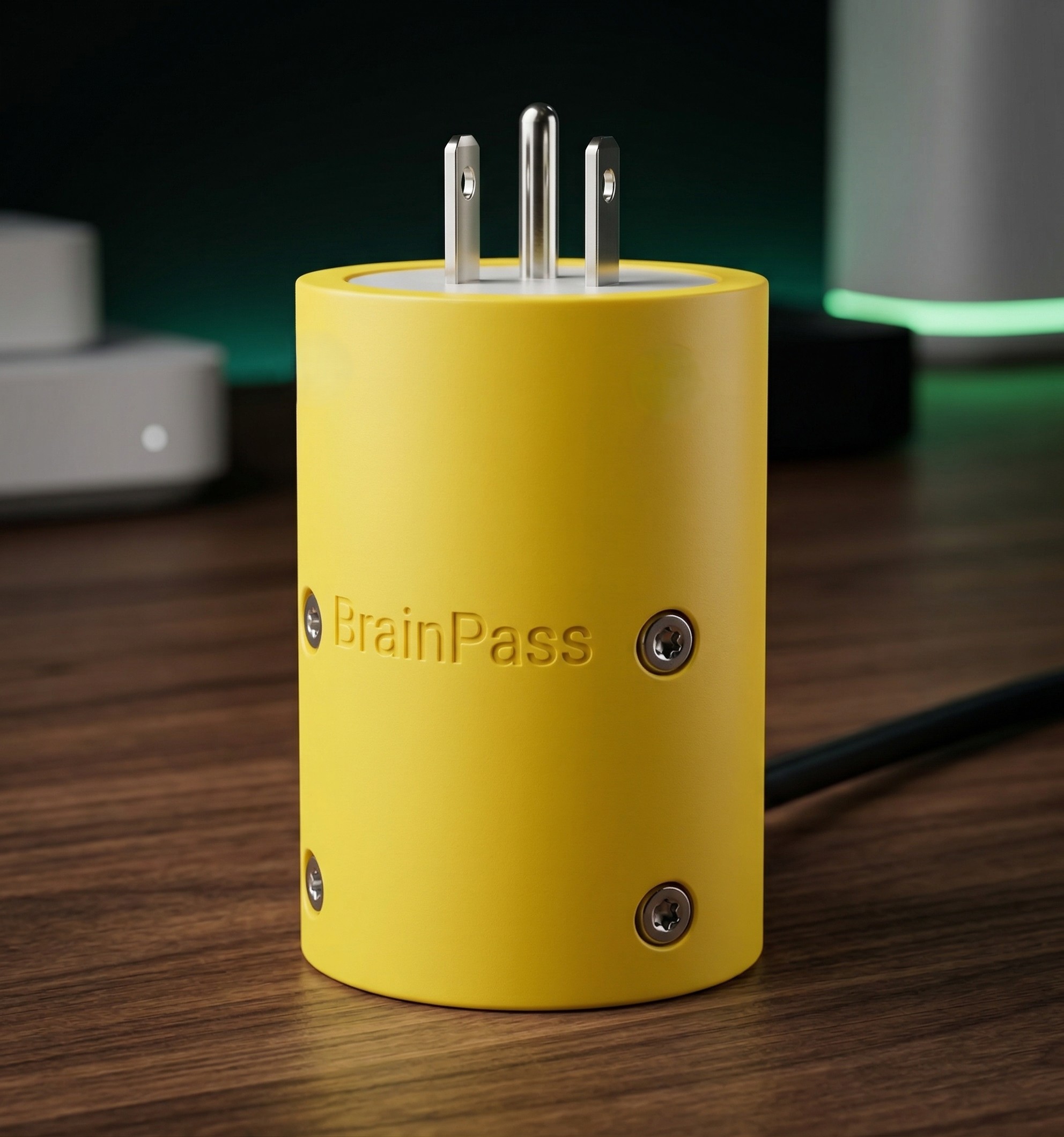
Yes! Using our Parent Hub, you can connect a BrainPass-compatible Wi-Fi Smart Plug to your account. Your child can then spend the Star Points they earned from doing math to "buy" TV time directly from their tablet. The TV turns on automatically, and shuts off the second their timer runs out!
What stops my child from just unplugging the TV to bypass the timer?
We designed a custom Tamper-Proof Enclosure. It physically locks your TV's power cord to the smart plug using specialized Security Pin Torx screws. Your child cannot separate the cord from the plug, and the smart plug's manual power button is completely shielded inside the plastic housing.
What happens if my child unplugs the whole smart plug from the wall?
BrainPass features an "Active Ping" auto-heal failsafe. If the system detects the smart plug has been physically removed from the wall outlet, it instantly pauses the digital timer on their tablet and safely refunds their remaining points so they don't lose their hard-earned rewards.
Does BrainPass work on iPads or iPhones?
The Child App: No. Due to Apple's strict ecosystem, the app that locks the screen only works on Android and Amazon Fire tablets.
The Parent Hub: Yes! You can log in and monitor your child from ANY device (iPhone, iPad, Mac, PC, or Web browser).
Is there a free version of BrainPass?
Yes! You can download the app and use it in Free Demo Mode forever without a credit card. This includes the app locker, the Parent Hub, the Smart Home TV economy, and a limited loop of basic Math and English questions. You can upgrade to Premium at any time to unlock thousands of state-specific questions and premium subjects like Science and History.
I have multiple children. Do I need multiple codes?
Yes. Because our curriculum is strictly aligned to specific Grade Levels, Premium Activation Codes are valid for one device/grade. Your Parent Hub can monitor multiple tablets, but each tablet needs its own code.
Does the app work in the car without Wi-Fi?
Yes! BrainPass securely downloads your child's curriculum directly to the device. If they are in the car with no internet, the app will continue to lock the screen, ask questions, and award points. It will automatically sync their progress to your Parent Hub the second it reconnects to Wi-Fi.
How do I stop my child from simply deleting the app?
We have a built-in guard for this. Open the Parent Dashboard and tap 'Enable Uninstall Protection' near the top. Once activated, the tablet will require your 4-digit Parent PIN before the app can be removed or disabled.
My child needs to use the Phone or Texting. Will they be blocked?
Not if you add them to the Safe List! Go to the Parent Dashboard, scroll to 'Allowed Apps', and tap 'Manage Whitelist'. Any app you turn on here (like the Phone, WhatsApp, or emergency apps) will never be blocked by BrainPass.
How often will the app interrupt my child's screen time?
You control the timer! In the Parent Dashboard under 'Lock Frequency', you can set the tablet to lock every 15, 30, 60, or 120 minutes. You can also select 'Pause Quiz' if they need a break for the day.
I forgot my Parent PIN. How do I get back into the settings?
Don't panic! Whenever the app asks for your PIN, tap the 'Forgot PIN?' link at the bottom. You will be asked to answer the personal Security Question you chose during setup (like your first pet's name). Answering correctly will let you right back in to create a new PIN.
The screen says 'Oops! I fell asleep!' What happened?
This screen appears if the tablet's operating system accidentally turns off a required background permission (like Notifications). Just tap the green 'WAKE ME UP' button to quickly restore the settings so BrainPass can continue protecting the screen.
How does my child earn and spend Star Points?
Kids earn 10 points for every correct answer, plus a 50-point bonus for getting a perfect score! They can spend these points on Power-Ups during a quiz, like the '50/50' hint to hide two wrong answers, or 'Skip' to instantly unlock their device and take a break.
Can I give my child extra points for doing real-world chores?
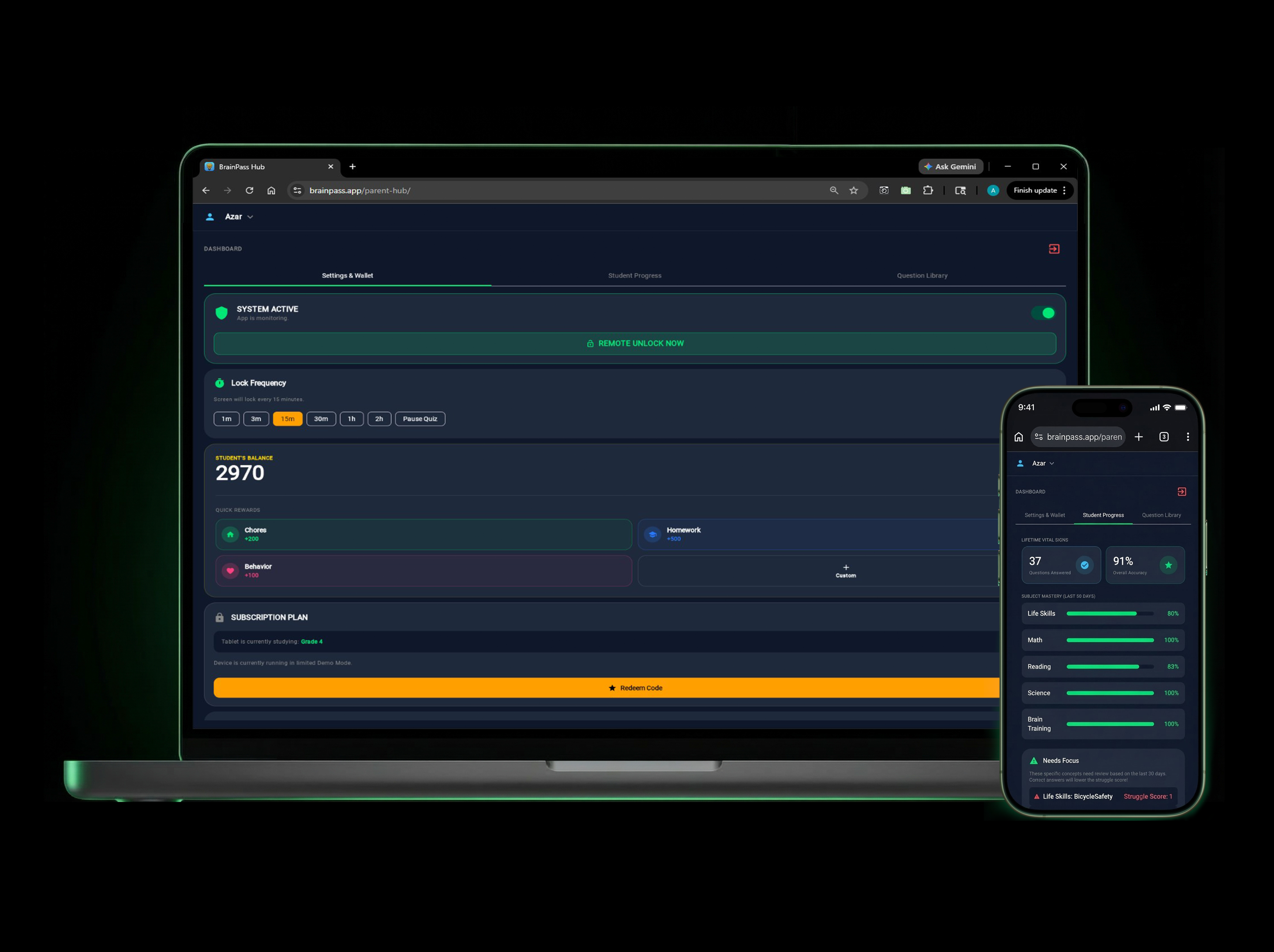
Absolutely! In the Parent Dashboard, look for the 'Parent Wallet' section. You can tap the Quick Reward buttons to instantly send bonus points to their tablet for doing chores, finishing homework, or good behavior.
Can I turn off subjects my child hasn't learned yet?
Yes! Scroll down to the 'Focus Subjects' section in the Parent Dashboard. You can toggle off any subject you don't want them to see (like Math or Reading). The app will hide that subject from their quizzes until you turn it back on.
How do I check my child's grades and see what they are learning?
Open the Parent Dashboard and tap 'Activity & Reports'. The 'Student Progress' tab shows a full Report Card of every quiz they've taken. You can tap on any recent quiz to see a detailed log of exactly which questions they got right or wrong.
Can I manage the app or unlock the tablet from my own phone?
Yes! Look for your 6-digit 'Tablet Pairing ID' in the Parent Dashboard. Go to the Parent Hub website on your own phone or computer, enter this ID, and you can manage points, change settings, or remotely unlock the tablet from anywhere.
How does the app get new questions as my child learns?
The app automatically checks for new curriculum updates every 24 hours. If you want to force an update immediately, go to the 'Help & Support' section in the Dashboard and tap 'Check for Updates Now'.
I found a typo or mistake in one of the questions. How do I report it?
We would love your help catching errors! Open the Parent Dashboard, tap 'Activity & Reports', and select the 'Question Library' tab. Search for the question and tap the little Flag icon to automatically draft an email to our teaching team.